How To Connect Your iPhone to a Smart TV: Step-by-Step Guide and Screen-Casting Tips
In this step-by-step guide, we’ll walk you through the ways to connect your iPhone to a smart TV: with an HDMI cable, with AirPlay, and by casting to Roku or Chromecast. Connecting your iPhone lets you enjoy your videos, photos and games on a larger screen. Let’s get started!
Disclaimer: The steps provided may vary depending on your iPhone model and iOS version. Please ensure that your devices are compatible before proceeding.
Which method should you use?
- You have an HDMI cable and the right adapter: use an HDMI cable (Method 1). It mirrors your whole iPhone screen and does not depend on your Wi-Fi network.
- You have an Apple TV or an AirPlay-compatible smart TV: use AirPlay (Method 2) to mirror your screen or stream a video.
- You have a Roku: cast from your apps, use Play on Roku, or use AirPlay if your model supports it (Method 3).
- You have a Chromecast: cast from Cast-enabled apps (Method 4). It does not mirror your whole screen.
Before you start
For the wireless methods (2, 3 and 4), your iPhone and the device connected to your TV must be on the same Wi-Fi network. To check it, go to Settings > Wi-Fi on your iPhone and look at the network name; then look for the Wi-Fi network name in the settings of your TV or streaming device.
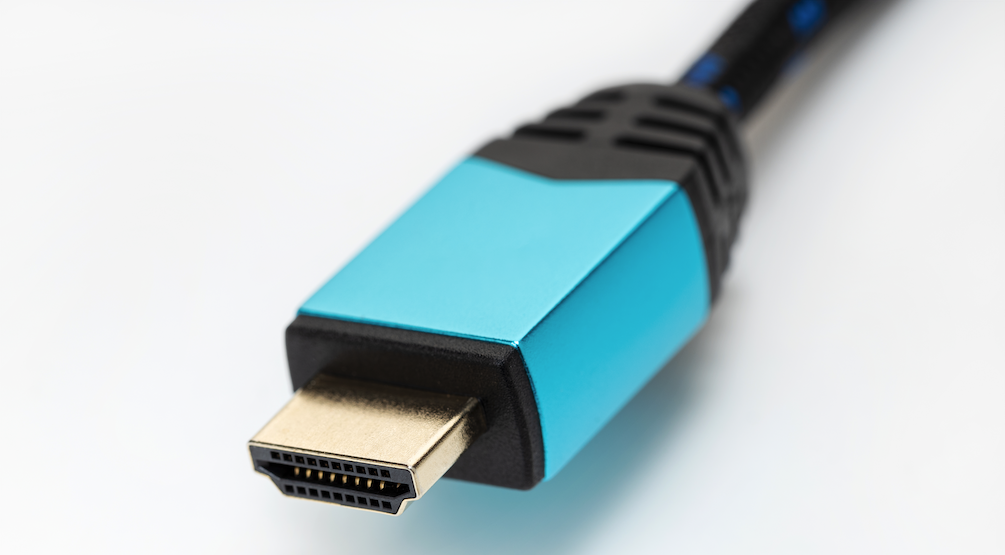
Method 1: Using an HDMI Cable
- Connect one end of the HDMI cable to the HDMI port on your smart TV.
- Connect the other end of the HDMI cable to the adapter: a Lightning-to-HDMI adapter for an iPhone 14 or earlier, or a USB-C-to-HDMI adapter (or a USB-C-to-HDMI cable) for an iPhone 15 or later.
- Plug the adapter into your iPhone’s charging port (Lightning or USB-C).
- Turn on your smart TV and set it to the correct HDMI input.
- Your iPhone’s screen should now be mirrored on the smart TV. Enjoy!
The iPhone 16e and iPhone 17e cannot connect to a display through the USB-C port. Use AirPlay (Method 2) instead.
Method 2: Wireless Connection with AirPlay (Apple TV or AirPlay-compatible smart TV)
- Ensure your iPhone and your Apple TV (or AirPlay-compatible smart TV) are connected to the same Wi-Fi network.
- On your iPhone, open the Control Center by swiping down from the top-right corner (or up from the bottom on older models).
- Tap the Screen Mirroring icon and select your Apple TV or smart TV from the list.
- Enter the AirPlay code displayed on your TV screen, if prompted.
- Your iPhone’s screen will now be mirrored on your TV. Enjoy your content on the big screen!
To stream a single video instead of mirroring the whole screen, tap the AirPlay button in the video app and choose your TV. To stop mirroring, open Control Center, tap Screen Mirroring, then tap Stop Mirroring. Some video apps do not support AirPlay.
Method 3: Casting to Roku
- Make sure your iPhone and your Roku device are connected to the same Wi-Fi network.
- To watch a video from an app that supports casting, such as YouTube or Netflix, tap the Cast icon in the app and select your Roku device. Not every app shows it.
- To show your own photos, videos and music on the TV, install the free Roku mobile app from the App Store, open it and use Play on Roku. Follow the on-screen instructions to choose and play the content.
- If your Roku device supports AirPlay 2, you can also use AirPlay as in Method 2: tap the AirPlay icon in a video or music app, or open Control Center, tap Screen Mirroring and select your Roku device to mirror your whole iPhone screen. Roku lists the compatible models on its support page.
Method 4: Casting to Chromecast
- Download and install the Google Home app from the App Store.
- Ensure your iPhone and Chromecast are connected to the same Wi-Fi network.
- Open the Google Home app and tap the “+” icon to set up a new device.
- Follow the on-screen instructions to connect your Chromecast.
- Once connected, open an app that supports Google Cast (such as YouTube or Netflix) and tap the Cast icon.
- Select your Chromecast from the list, and the video will play on the TV.
Chromecast casts from Cast-enabled apps. It does not mirror your whole iPhone screen; to do that, use an HDMI adapter (Method 1), AirPlay (Method 2) or a Roku that supports AirPlay (Method 3).
What to do if your iPhone doesn’t connect to your TV
If you encounter any issues while connecting your iPhone to a smart TV, try the following troubleshooting steps:
- Ensure that both devices are connected to the same Wi-Fi network.
- Restart your iPhone and smart TV.
- Update your iPhone’s iOS and the apps involved.
- Check for any firmware updates for your smart TV or additional devices.
- Consult the user manuals or support documentation for your specific devices for further assistance.
FAQs – Connecting Your iPhone to a Smart TV
Can I connect any iPhone model to a smart TV?
The ability to connect your iPhone to a smart TV depends on the model and iOS version.
Most iPhones can be connected using an HDMI adapter (Lightning or USB-C, depending on the model) or wirelessly through Apple TV, Chromecast or Roku. However, it’s essential to ensure compatibility before proceeding.
Do I need any additional accessories to connect my iPhone to a smart TV?
Depending on the method you choose, you may need additional accessories. For connecting via HDMI, you’ll need a Lightning-to-HDMI adapter (iPhone 14 and earlier) or a USB-C-to-HDMI adapter (iPhone 15 and later), and an HDMI cable. For wireless connections, you may need to download specific apps or ensure that both devices are connected to the same Wi-Fi network.
Can I mirror my iPhone’s screen on any smart TV?
Mirroring your iPhone’s screen on a smart TV depends on the compatibility of the TV and the method you choose. Some smart TVs support screen mirroring directly with AirPlay, while others require additional devices like Apple TV or Roku.
Can I stream all types of content from my iPhone to a smart TV?
In most cases, you can stream a wide range of content from your iPhone to a smart TV. This includes videos, photos, music, and even apps. However, certain apps or content may have restrictions or limitations based on licensing agreements or compatibility issues.
Can I control my smart TV using my iPhone?
Yes, depending on the method you use to connect your iPhone to a smart TV, you may be able to control certain functions of your smart TV using your iPhone. For example, if you connect via Apple TV, you can use your iPhone as a remote control for your TV.
Are there any limitations or considerations when connecting an iPhone to a smart TV?
While connecting your iPhone to a smart TV offers many benefits, there are a few limitations to consider. Some content may not be available for streaming due to compatibility or licensing restrictions. Additionally, streaming content wirelessly may consume more battery power on your iPhone compared to using a wired connection.
Related posts


Recent posts